Silk Mobile
Table of Contents (Homepage)
- Overview
- Setting Up
- Getting Started
- How To
- Connecting Devices And Emulators
- Preparing Applications For Testing
- Managing Applications
- Recording Tests
- Working With Test Commands
- Adding Commands To Your Scripts
- Object Commands
- Click
- ClickCoordinate
- ClickIn
- ClickOffset
- Drag
- ElementGetProperty
- ElementGetTableRowsCount
- ElementListPick
- ElementListSelect
- ElementListVisible
- ElementScrollToTableRow
- ElementSendText
- ElementSetProperty
- ElementSwipe
- ElementSwipeWhileNotFound
- GetAllValues
- GetElementCount
- GetElementCountIn
- GetTextIn
- IsElementBlank
- IsElementFound
- IsFoundIn
- LongClick
- RunNativeAPICall
- SendWhileNotFound
- VerifyElementFound
- VerifyElementNotFound
- VerifyIn
- WaitForElement
- WaitForElementToVanish
- GetCoordinateColor
- DragDrop
- Application Commands
- Device Commands
- Web (Hybrid) Specific Commands
- Utilities Commands
- Monitoring Commands
- Configuration Commands
- ExtractLanguageFiles
- SetDefaultClickDownTime
- SetDefaultTimeOut
- SetDefaultWebView
- SetDragStartDelay
- SetInKeyDelay
- SetKeyToKeyDelay
- SetLanguage
- SetLanguagePropertiesFile
- SetShowImageInReport
- SetShowPassImageInReport
- SetShowReport
- SetSpeed
- SetThrowExceptionOnFail
- SetWebAutoScroll
- StartStepsGroup
- StopStepsGroup
- TextFilter
- Miscellaneous Commands
- Controlling Element Identification Rules
- Editing Test Objects
- Executing Test Scripts
- Report Of Executed Test
- Working From Code Environment
- Continuous Integration
- Layout Verification Tests
- Use Device Vitals Monitors
- Troubleshooting
- Terminology
Instrumenting Android Applications
IMPORTANT NOTE: In this page you can find an 'automatic' process for instrumenting an application. In some cases, a MANUAL PROCESS is required, if the 'automatic' process won't work.
Note: Android Watch application is not supporting instrumentation
Note: We provide an instrumented iOS demo app: eri-Bank - can be found under installation folder: <install dir> \bin\ipas
Step 1: Perform the following prerequisites:
-
See to it that the application has network access permission. If it doesn't, open the application's manifest.xml file and add the following line:
<uses-permission android:name="android.permission.INTERNET"/>.
Step 2: In the Application Manager now displayed, select the application to be imported and click the Import Application icon.
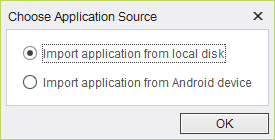
Step 3: In the dialog box now displayed, choose whether to import the application to be instrumented from the:
-
local disk as an apk file
-
directly from the Android device itself
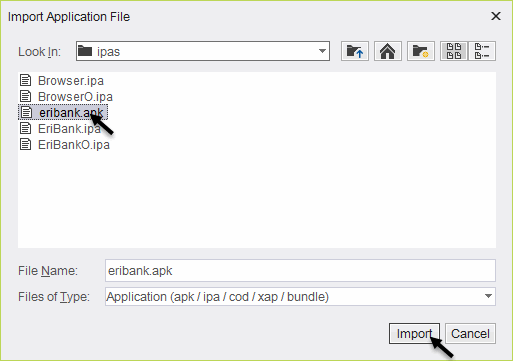
If you are importing the application from your local disk, navigate to the folder in which the apk file is stored. Select it, and click Import.
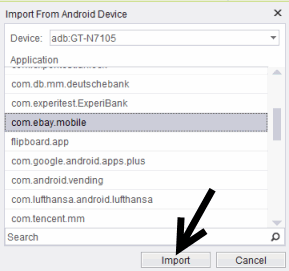
If you are importing the application directly from the Android device, choose the application from the displayed list and click Import.
Step 4: The process should take between 1-3 minutes depends on the application size. When completed, it will be available on the application manager list.
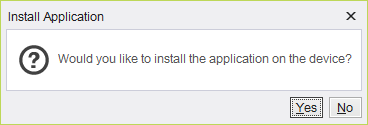
Step 5: Install the application. You can do this by simply clicking Yes when asked whether to install the application.
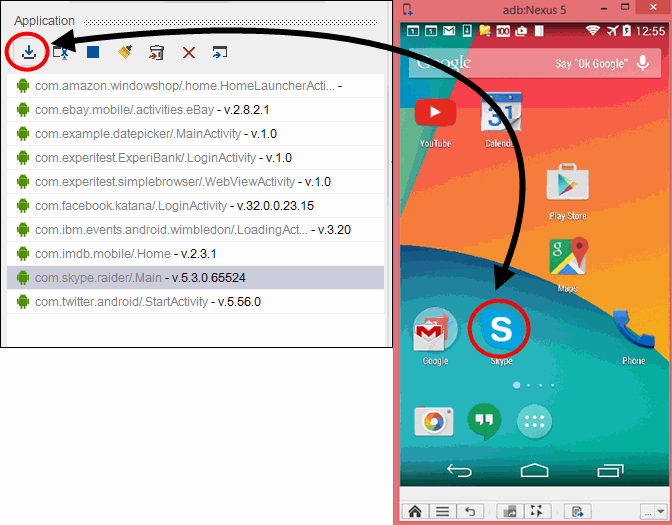
Alternatively, choose the application identifier on the application manager list and click the 'Install' icon.
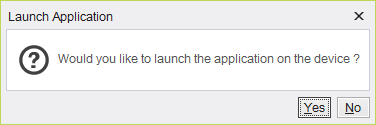
Step 6: When you have completed installation, you will be asked to launch it
Alternatively, choose the application identifier on the application manager list and click the 'Launch' icon.
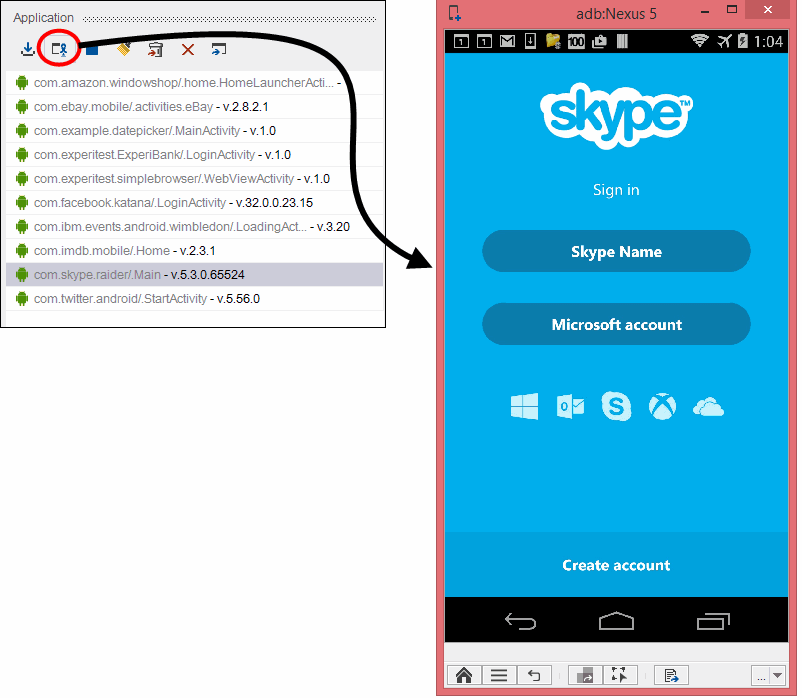
After launching the instrumented application, click the Spy button to identify the application's Native objects.